
Documentation
Use your own custom domain
Your site starts on a Get Bookable address (your-business.getbookable.online),
but you can put it on your own domain — www.yoursalon.com — so your brand is
front and centre. You add and manage domains under Settings → Domain.
Adding your domain
- Buy your domain from any registrar (GoDaddy, Namecheap, Google Domains, etc.) if you don't already own one.
- In Settings → Domain, enter the domain you want to use and add it.
- Your admin then shows you the exact DNS record to create at your registrar.
Pointing your domain at your site (DNS)
DNS is how the internet knows your domain should show your Get Bookable site. In your registrar's dashboard, find the DNS or domain settings area and add the record your admin shows you — typically a CNAME pointing your domain at our address:
| Type | Name / Host | Value / Points to |
|---|---|---|
| CNAME | www (or your domain) | the target shown in your admin |
If you want the bare domain (yoursalon.com, no www), your registrar may call
this an ALIAS, ANAME, or CNAME flattening record — use whichever they
offer, pointed at the same target.
Save the record. DNS changes can take anywhere from a few minutes to a few hours to spread across the internet — this is normal.
Watching the status
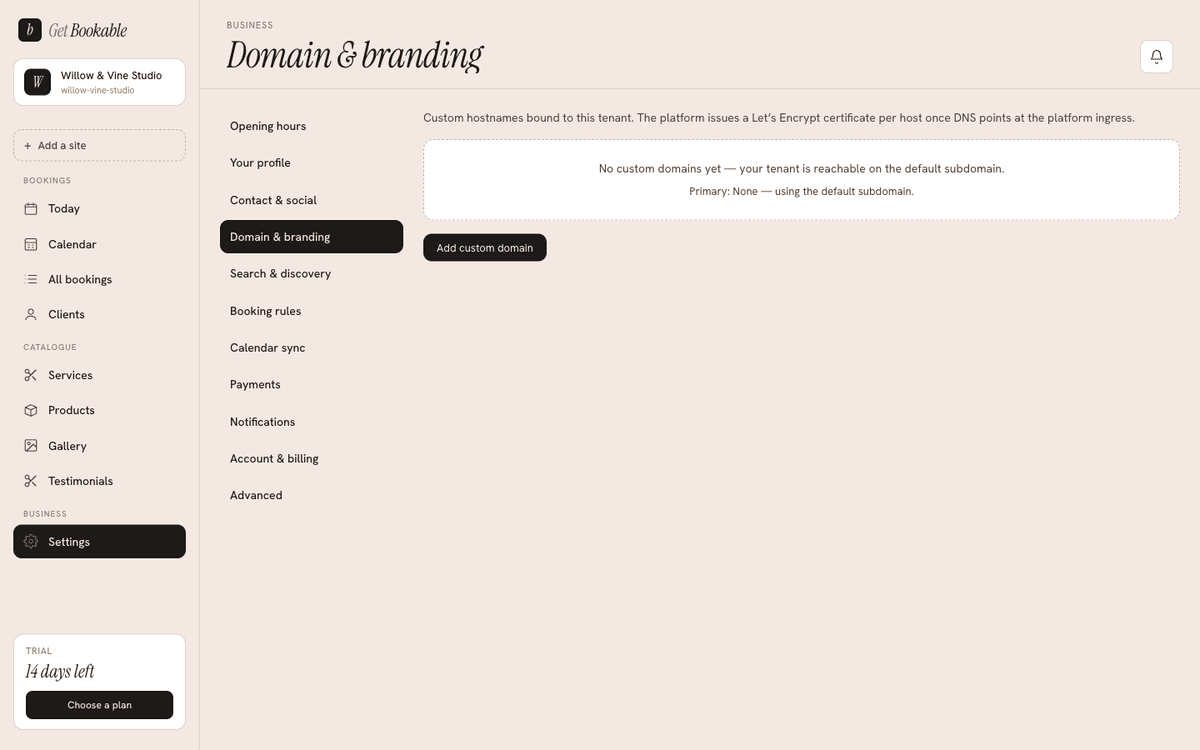
Each domain shows a status badge so you know where it's up to:
- Pending DNS — we're waiting to see your DNS record. If it's stuck here, double-check the record at your registrar matches exactly.
- Pending certificate — DNS is working; we're issuing the security certificate
that gives your site its padlock (
https). This is automatic. - Active — done. Your site is live on your domain, secured.
- Failed — something needs attention; the screen explains what. Usually it's a DNS record that doesn't match — fix it and it'll retry.
Make it your primary
Once a domain is active, set it as your primary so it becomes the canonical address for your site — better for search and for a consistent brand. You can add more than one domain and remove any you no longer need.