Documentation
Your admin dashboard
Your admin shell is where you run the day-to-day: see what's coming up, manage
bookings and clients, edit your services, and change your settings. It lives at
getbookable.online/admin/your-business (sign in with the account you onboarded
with).
The Today screen
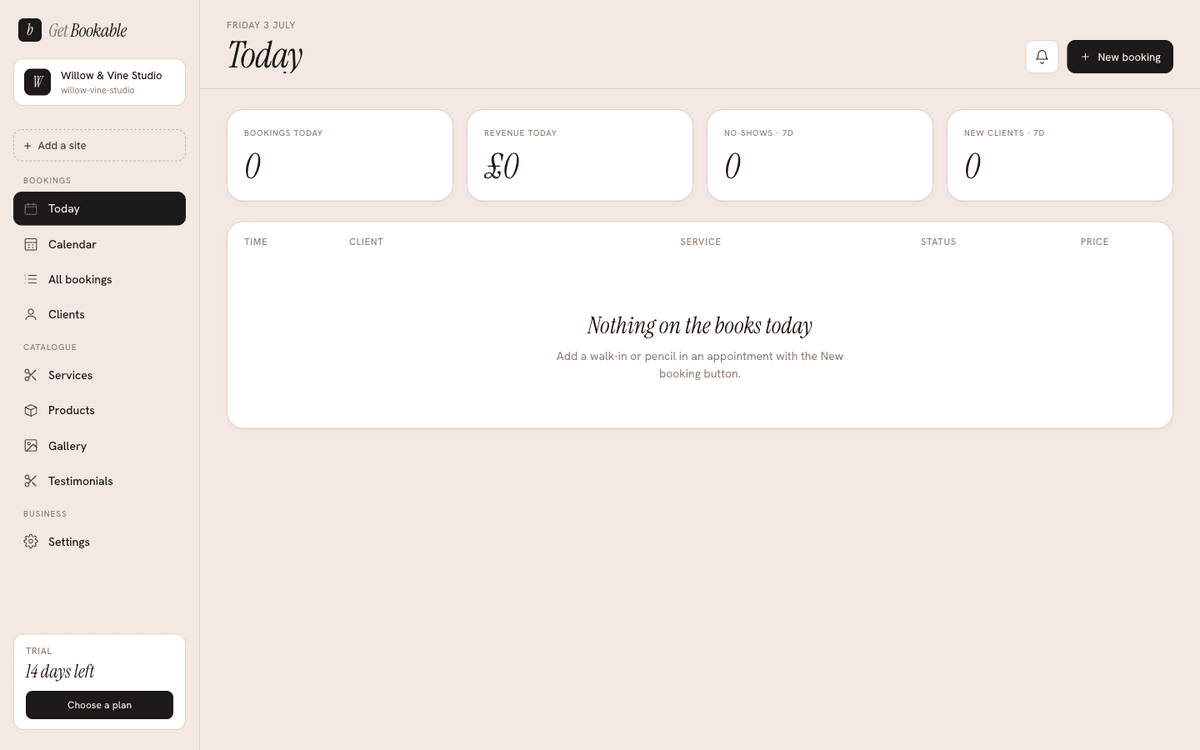
When you sign in you land on Today — a snapshot of your day: upcoming bookings, quick stats, and anything that needs attention. It's the home base you return to.
The main sections
The sidebar gives you the full dashboard:
- Calendar — a day, week, and month view of your bookings. Times outside your opening hours (and any closures) are shaded so it's obvious when you're closed. You can drag a booking to reschedule it.
- Bookings — the full, filterable list of every booking, with search and status filters. Open one to edit its time, status, or details. See Manage your bookings.
- Clients — everyone who has booked with you, with their booking history. See Clients & data protection.
- Services — the things clients can book. See Services & pricing.
- Products — items you sell alongside services (optional). See Products.
- Gallery — your images, organised by tag and by where they're used on your site.
- Testimonials — collect and curate client quotes. See Collect & show testimonials.
- Import — upload or re-upload your design bundle. See Re-import & update your design.
- Settings — everything else, grouped into panes.
Settings panes
- Opening hours — weekly hours, closures, timezone, currency.
- Booking rules — notice, slot timing, and cancellations.
- Your profile — public name, bio, headshot, favicon.
- Contact — phone, email, address, map, and social links.
- Search & discovery — how you appear in Google.
- Payments — connect Stripe for deposits and payments.
- Notifications — reminder emails and Zoom.
- Calendar sync — subscribe to and block busy time from other calendars.
- Domain — put your site on your own domain.
- Account & billing — your plan, trial, and invoices.
Editing your live site
Two of the most common jobs have their own guides:
- Editing pages & content — change the text and images on your public site.
- Profile & branding — your public name, bio, headshot, and browser-tab icon.
Advanced editing
A small Advanced link opens the advanced editor in a new tab, where every field on every block is editable. Most people never need it — your dashboard covers the common tasks — but it's there when you want full control.